


Introduction
When setting up an EDS project using either Universal Editor or Document Authoring (DA), it is generally recommended that the project repository be public. However, maintaining a public repository is not always feasible, as many clients prefer private repositories due to security, compliance, and organizational requirements.
Currently, there is no dedicated documentation that provides a comprehensive guide for setting up an EDS project using a private repository.
This article provides a detailed guide to setting up an EDS Universal Editor project with a private GitHub repository in Adobe Cloud Manager, including the required configuration and setup steps.
Other Git Providers
If you are using a Git provider other than GitHub, such as GitLab, Bitbucket, or Azure DevOps, the setup requires an additional webhook when the repository is routed through Cloud Manager. Refer to this article for more info.
Steps
1. Setup a new EDS project using the boilerplate:
https://github.com/adobe-rnd/aem-boilerplate-xwalk
Open the above link > Click Use this template > Click Create a new repository
Note: You must log in to your GitHub account to see the above option.
Set the repository to private while creating it.
2. Update the fstab.yaml file. It should look like this:

url = https://<aem-author>/bin/franklin.delivery/<github username or org name>/<repository name>/main
Note: You can get the <aem-author> from your cloud manager. Select an author environment where you will be setting up your project and check the URL in the browser.
3. Install the AEM sidekick extension
https://chromewebstore.google.com/detail/aem-sidekick/igkmdomcgoebiipaifhmpfjhbjccggml
4. Use the AEM code sync
Visit https://github.com/apps/aem-code-sync > Click Configure > Select your repo > Click Save
After clicking save, you will be redirected to this screen:
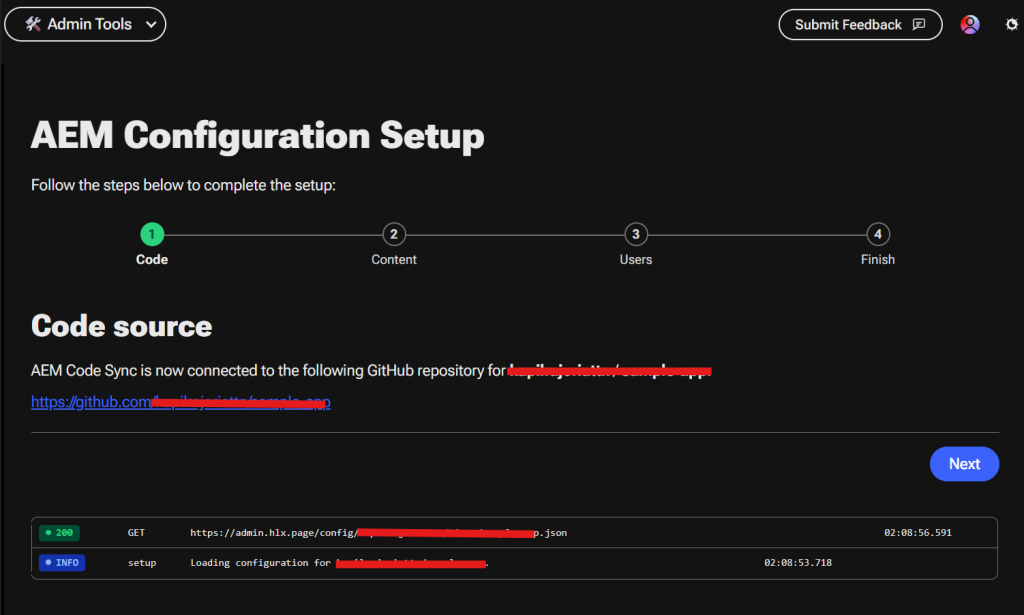
Click Next
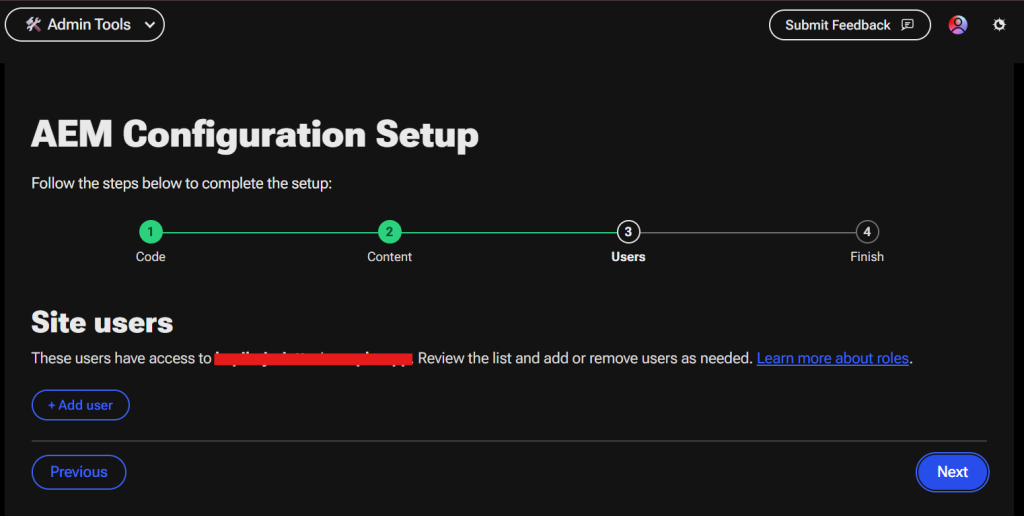
Add your email for admin and add other emails for different roles as required > Click Next
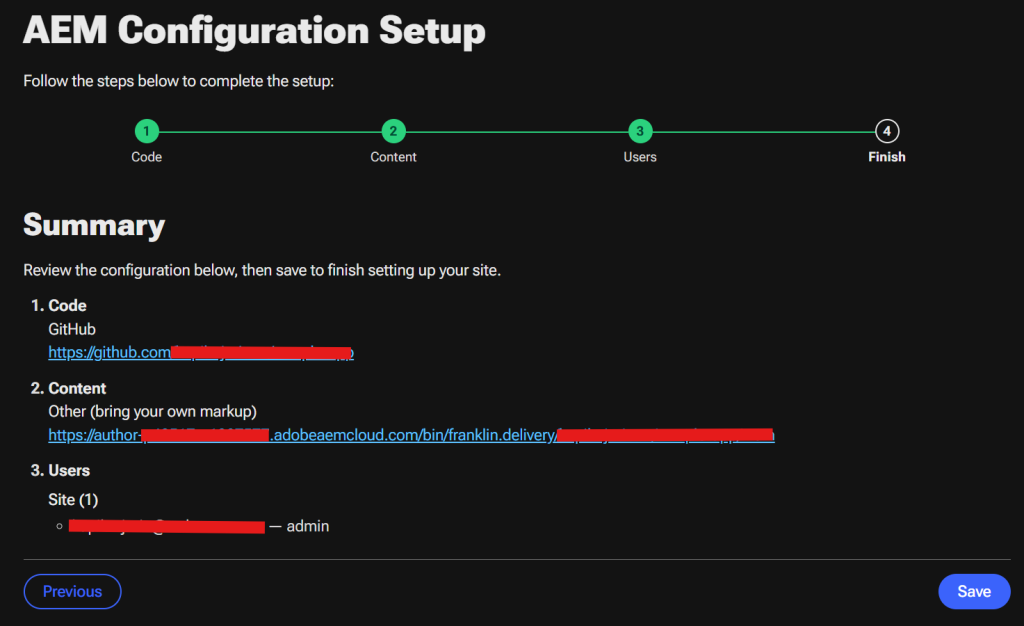
Click Save, and you will be redirected to the below screen.
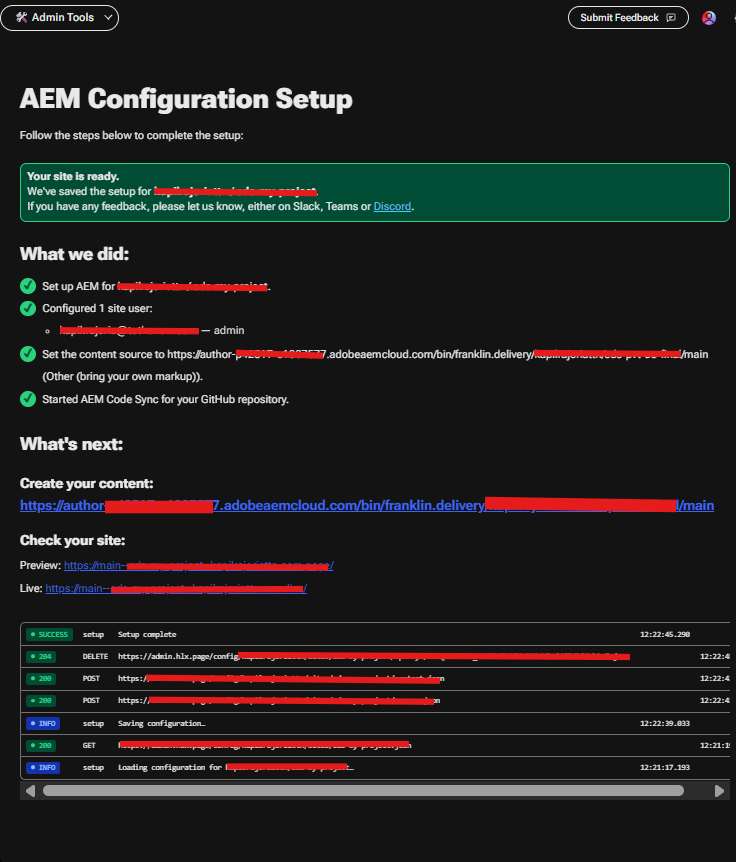
Now, refresh the page, and if it becomes like this:
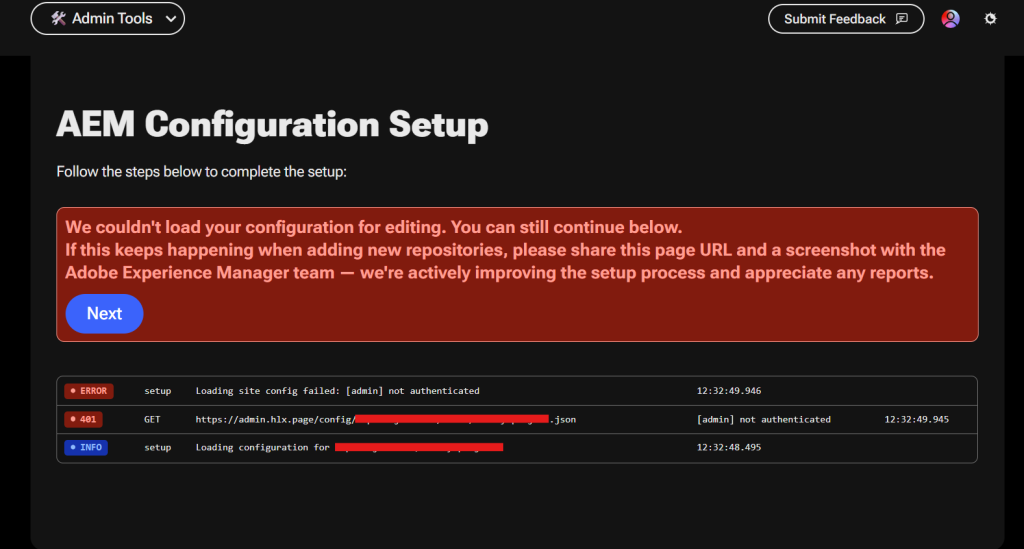
You will have to log in to your Sidekick extension.
For that, click on the profile icon on the page and log in with the same email that you made admin earlier.
Now, refresh the page, and if you are redirected to the below page, everything is good. You can go to the next step.
5. Configure your repo inside the cloud manager:
Go to cloud manager > Click Hamburger icon > Repositories > Click Add repository
and do the needful steps
6. Set up the EDS site inside Cloud Manager:
Go to Cloud Manager > Click hamburger icon > Edge Delivery Sites > Click Add Edge Delivery Site
When the status changes to verified, click on 3 dots > Click Bring your own Git
Follow the below steps to add the secret generated in Cloud Manager using the admin API:
a) Store the secret in cm-byog using the curl below:
curl -v -X POST https://admin.hlx.page/config/<org>/sites/<site>/secrets/cm-byog.json
  -H 'content-type: application/json'
  -H 'x-auth-token: <your-auth-token>'
  --data '{
    "value": "<secret from cloud manager>"
  }'
Expected Response:
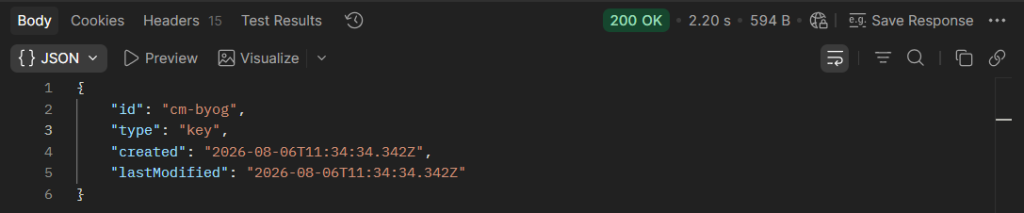
Note:
- In the URL, org = your organization name or your GitHub username, and site = your repository name
- You can get the “auth-token” by inspecting it in the browser and then clicking on the “Fetch Users” button on the below page: https://tools.aem.live/tools/user-admin/index.html. Look for the “x-auth-token” in the headers for the access.json network call.
b) Now that the secret is stored, add it to the site using the curl below:
curl -v -X POST https://admin.hlx.page/config/<org>/sites/<site>/code.json
  -H 'content-type: application/json'
  -H 'x-auth-token: <your-auth-token>'
  --data '{
    "source": {
      "url": "https://cm-repo.adobe.io/api",
      "raw_url": "https://cm-repo.adobe.io/api/raw",
      "owner": "<program-id>",
      "repo": "<repository-id>",
      "type": "byogit",
      "secretId": "cm-byog"
    }
  }'
Expected Response:
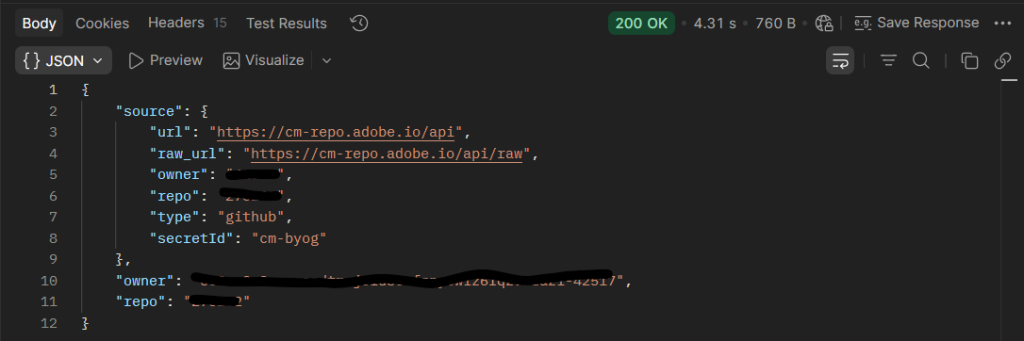
Note:
You can get the “program-id” and “repository-id” by inspecting it in the cloud manager and refreshing the repositories page. Search for the “repo” keyword in network calls and look for your repository name in the response of that API call.
Now that the secret has been configured using the admin API:
Click on 3 dots > select code sync
7. Now follow the rest of the tutorial to create a site in Cloud Manager and start working with the universal editor:
https://www.aem.live/developer/ue-tutorial#create-an-aem-site