


Introduction
Roku developers may spend a lot of time in updating/changing translations, sizes, spacing and alignments just to get a UI element exactly where it should be. RALE helps to reduce UI development time and provide a interface by which developers can updates UI items and see the updated UI in real-time without reinstalling and checking the affected UI.
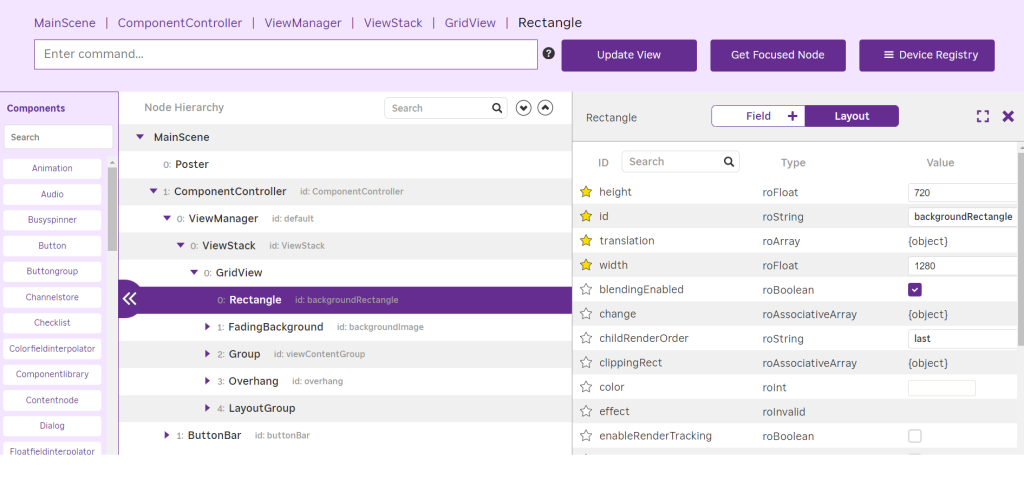
RALE
Roku Advanced Layout Editor (RALE) is a visual development tool that is meant to help Roku developers develop and edit SceneGraph based user interfaces more efficiently. This way, developers are able to work with a graphical representation of the layout rather than manually calculating coordinates and constantly deploying the application to verify every UI change.
Why RALE?
During the creation of a typical SceneGraph UI, you regularly change XML parameters such as translation, width, size, font, colour, spacing, etc.
A modest modification could need several rebuilds and launches of the program to reach the desired outcome.
RALE provides a more visual workflow. Developers are able to view the layout, make changes and see how those changes impact the whole user interface.
This is very helpful for implementing and developing UIs when designers and developers may need to often modify the layout.
RALE or Manual XML Editing
Still, Roku development involves a lot of manual editing of XML documents. Developers need to know XML and BrightScript to create reusable components, manage focus behavior, handle events, and connect APIs. But visual layout tools can make the repetitive work of positioning UI elements less tedious.
Instead of endlessly guessing values, like translation=”[100, 200]”, developers are able to see where an element should go and then adjust the properties of the generated or underlying layout. The end result is a workflow that combines visual tweaking and code-based development, not one or the other.
Working of RALE
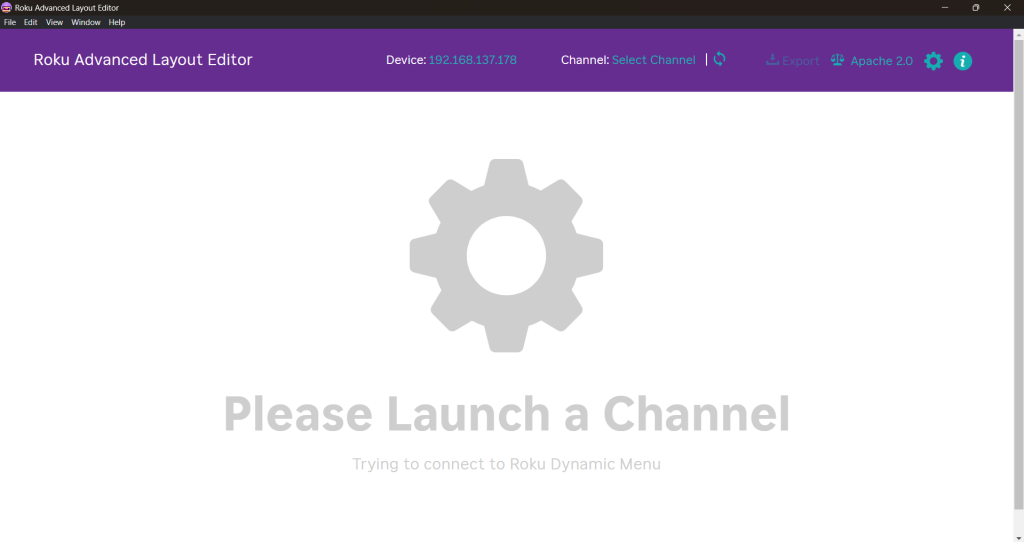
RALE
- Open and connect the RALE tool with the Roku device using device IP.
- Click on the Select Channel button and select the channel using the given options(by zip file or by directory).
- Now you can see the Node hierarchy of the sideloaded channel in the center of the screen. You can update the UI items/nodes by selecting them and updating that node’s info using the right-side section.
- There are 2 ways to update the UI nodes: Field, Layout.
- Field: You can see the list of fields of the selected node; you can update them using a textual format.
- Layout: If you can switch to Layout, you can see the visual representation of the nodes and screens; you can update translation and size using the cursor or by dragging it.
- You can add new components by dragging them from the left-side Component section and dropping them into the node hierarchy.
-
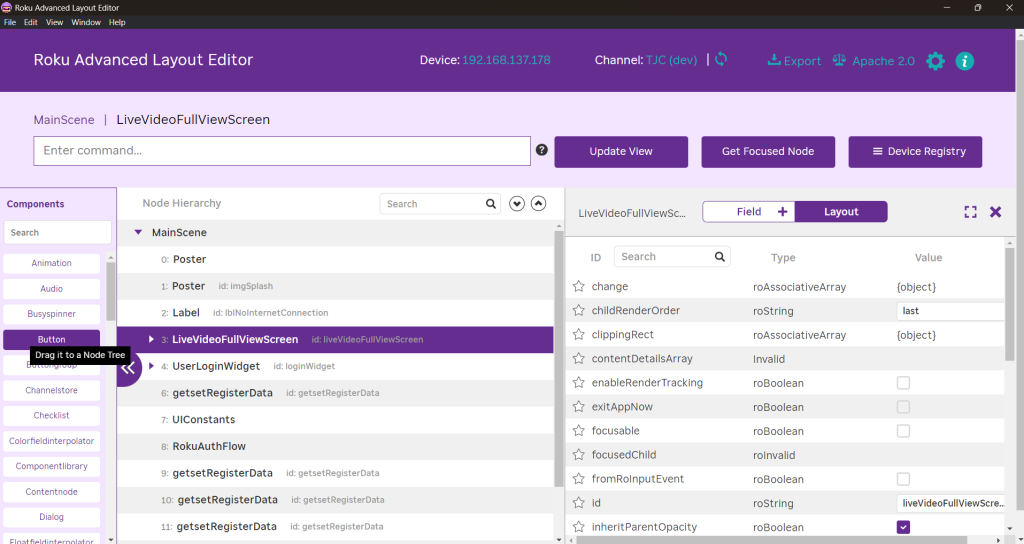
Adding nodes with RALE
-
- RALE also provides the feature to see the Device Registry info and provides a way to clear the particular registry section or full data.
-
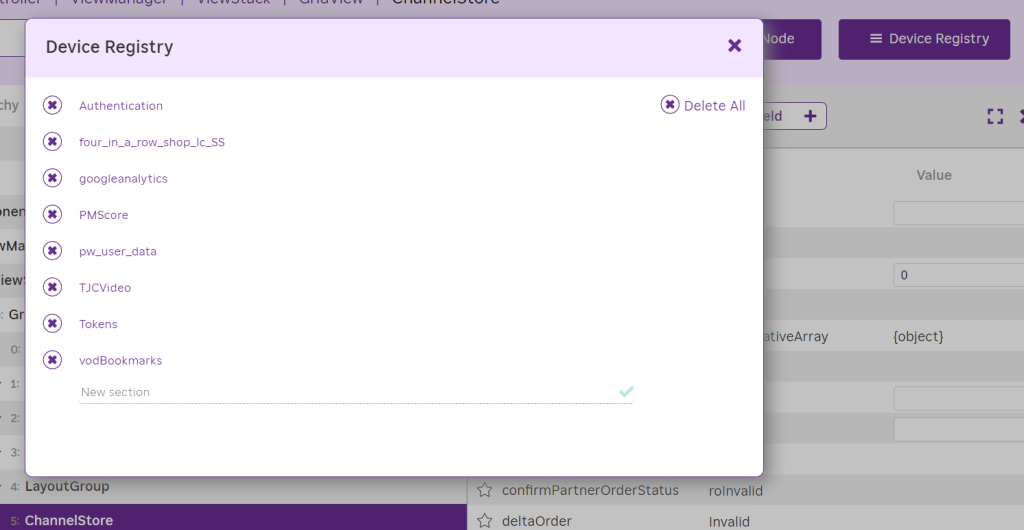
Device Registry in Rale
-
Conclusions
There’s a lot more to Roku development than just streaming APIs and BrightScript logic. Also critical is designing an interface that is responsive, consistent, and attractive.
Roku Advanced Layout Editor offers a visual approach to SceneGraph UI development that can speed up layout work and make it more intuitive.
It does not eliminate the need to know SceneGraph or BrightScript. Instead, it can be paired with traditional Roku development to shorten repetitive layout changes and give developers a more visual understanding of their UI.
If you’re a Roku developer building modern OTT applications, RALE is worth a look as part of your UI development workflow, especially when building complex screens where tweaking each and every layout property manually can become a time sink.